Fake Player Dataset
1. Overview
After finishing the ruleset script, it's important to ensure the rules are appropriate for the data features of players who use matchmaking. If the restrictions are too strict, it may cost too much time on finding matchmaking result. Also if the restrictions are too loose, while it will be quick to complete matchmaking, mixing experienced and novice players may reduce the fun of play.
PGOS provides a tool to verify a ruleset with Fake Player Dataset, which is a dataset of multiple fake player records. Fake player dataset can be generated by specified required parameters, cloned from an existing dataset, exported in csv format, and imported from csv file. The dataset is the input of the Matchmaking Simulator.
After completing this tutorial, you will be able to do the following things:
- Configure the ticket, player attribute, ticket arrival and network latency generators, to create a fake player dataset.
- Clone a fake player dataset to try a variation of it.
- Import a fake player dataset from
csvfile.
Click Tutorial on the Fake Player Dataset page for a step-by-step walkthrough of the minimal workflow.
2. Generate Fake Player Dataset
Click Add Fake Player Dataset to open the creating page. Two params are required: name and ticket scale. A ticket contains one or more players, which is the basic unit in tracking matchmaking process. The ticket scale is the number of tickets to generate, from 1 to 10000.
Each section of the page shows a preview on the right, such as the ticket mix and the value distribution of each attribute, so you can check the parameters before creating the dataset.
2.1 Configure Ticket Generator
A ticket contains one player in a solo battle, or multiple players in a group battle.
According to the verification scenario, you can adjust the multi-player ticket proportion by giving a weight to each count of players in ticket option. Weights are set to balance the ratio of different player count tickets, which are NOT absolute number of these tickets.
If the count of players in ticket exceeds the maxPlayers of a team, the ticket will time out in matchmaking test.
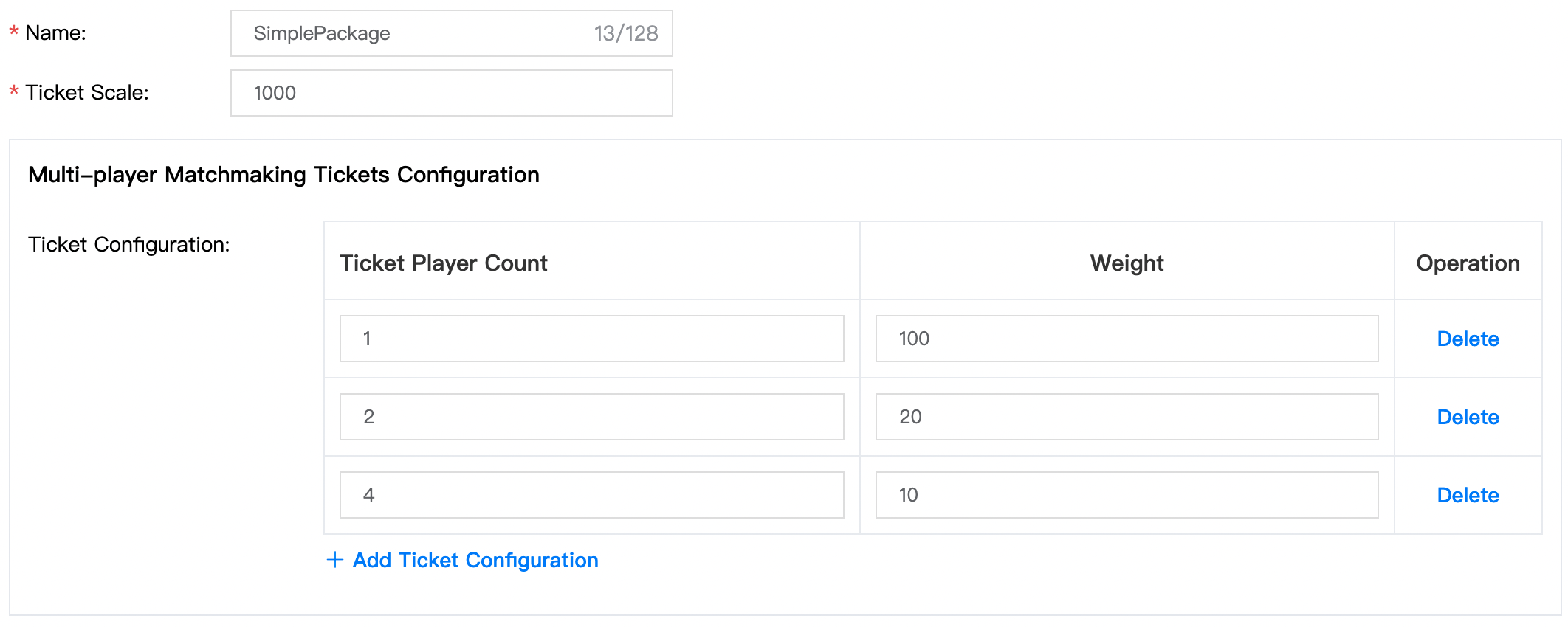
For example:
- To generate all solo tickets, refer the configuration below

- To generate all four-player-group tickets, refer the configuration below

2.2 Configure Player Attribute Generator
Two types of player attributes' generation are supported:
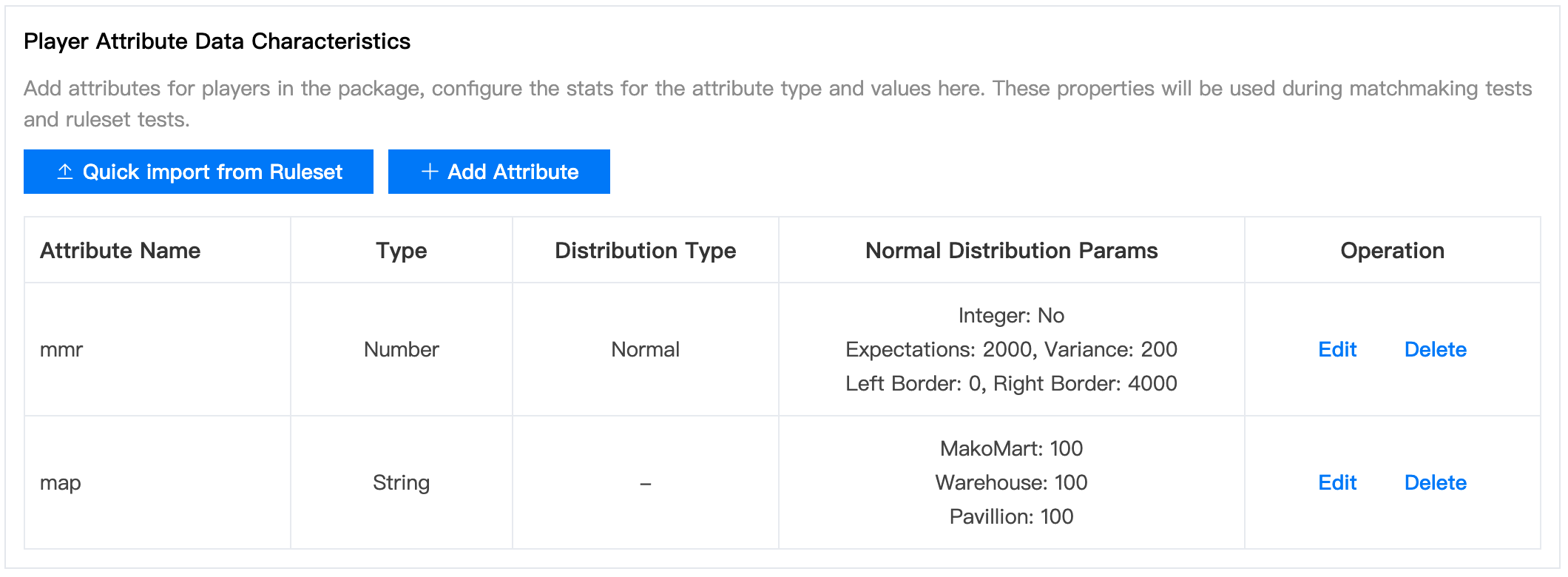
- Number: supports normal distribution and continuous uniform distribution
- For normal distribution,
expectationandstddevare required to create normal distribution formula,left borderandright borderare required to limit the range of the distribution to an interval. - For uniform distribution,
max valueandmin valueare required, and the value will be generated continuously uniformed.
- For normal distribution,
- String: supports generating string enums with weight
- For each string enum, specify its weight.
There are two ways of adding the needed player attributes:
- Add Attribute manually by specifying name, type and distribution params.
- Quick Import from Ruleset, with name and type already set, just need to Edit its distribution params.
The dataset must contain every player attribute declared by a ruleset to be used with that ruleset in the simulator. Otherwise it cannot be selected when you create a simulation case.
For example, a generator with two player attributes: mmr and map can be refered below:
2.3 Configure Ticket Arrival
This section decides when each ticket enters the matchmaking pool, and is written to the enter_offset_ms column of the dataset. The simulator only replays it when Ticket Arrival of the simulation case is set to From dataset.
| Distribution | Behavior |
|---|---|
| All at once | Default. Every ticket gets enter_offset_ms = 0, the same as datasets generated before this option existed. |
| Uniform | Spreads tickets randomly across the Arrival Span (in seconds), then sorts them. |
| Poisson | Exponential gaps at the given QPS (tickets per second). It is the closest to live traffic. |
| Constant | Equal gaps at the given QPS. |
2.4 Configure Network Latency
This section generates the latency of every player to each region. Click Add Region, then give the region a name and a distribution:
- The region name becomes a
latency.<region>column, for examplelatency.Z1. Use the zone names that yourlatencyRulesees in production, such asZ1andZ2, rather than cloud vendor region IDs. - The latency is an integer in milliseconds. Both normal distribution (with left and right borders) and uniform distribution are supported, the same as number attributes.
If no region is added, the dataset has no latency columns. A simulation case that uses this dataset with Latency Source set to From dataset will fail every latencyRule. Add regions here, or choose Fake latency when creating the simulation case.
3. Clone Fake Player Dataset
Click Clone on a dataset in the list to open the creating page with its generation parameters filled in. Adjust the parameters and click Create Clone to generate a new dataset. The original dataset is unchanged.
A dataset imported from a csv file has no generation parameters. Cloning it only restores what can be inferred from the file: the attribute names, the latency region names, and an arrival span from the largest enter_offset_ms. Number distributions, string weights and the ticket mix are not recovered, and Create Clone samples a new dataset instead of copying the imported rows. To reuse the same rows, Download CSV and import it again.
4. Import Fake Player Dataset
The fake player dataset can be exported and edited in third-party software like Excel, then after some tweaks it can be re-imported.
Click Import From CSV File, specify a name and upload a csv file to import a fake player dataset. The file can be up to 300 MB.
After the import, the list marks the dataset with Arrival if it contains non-zero enter_offset_ms, and with Latency if it contains latency.<region> columns. These two tags tell you whether the simulator can replay the arrival times and latencies from the dataset.
5. CSV Schema
Each row represents a player. If a ticket contains multiple players, their rows must be adjacent and share the same ticket_id.
| Column | Required | Description |
|---|---|---|
player_id | Yes | Must be the first column. |
ticket_id | Yes | Must be the second column. |
team | No | If set, the ticket can only join the team with this name. |
enter_offset_ms | No | When the ticket enters the pool, in milliseconds after the first ticket. Taken from the first row of the ticket. Missing or empty means 0. |
latency.<region> | No | The latency of the player to the region, in milliseconds. One column per region. An empty cell means the player has no latency for that region, which is different from 0. |
| Player attributes | Yes | One column per attribute, matched by column name to the player attributes declared by the ruleset. To simulate a ruleset, the file must contain every attribute that ruleset declares. |
Datasets generated by PGOS contain player_id, ticket_id, team, enter_offset_ms, the latency columns (if any regions are configured), and then the player attributes:
player_id,ticket_id,team,enter_offset_ms,latency.Z1,latency.Z2,mmr,map
player-1,ticket-1,,0,45,62,1913.747060,Camp TriggerFish
player-2,ticket-2,,1200,38,71,1719.388103,MakoMart
player-3,ticket-3,,1850,52,,2043.800709,MakoMart
player-4,ticket-4,,2400,61,49,1867.210120,Skipper Pavillion
player-5,ticket-5,,3100,44,58,2098.715281,MakoMart
player-13,ticket-13,,9800,57,66,2324.447528,Camp TriggerFish
player-14,ticket-13,,9800,49,73,1496.947738,MakoMart
player-26,ticket-25,,15300,40,55,2107.402592,MakoMart
player-27,ticket-25,,15300,43,52,2306.995124,Skipper Pavillion
player-28,ticket-25,,15300,51,60,2245.593568,MakoMart
player-29,ticket-25,,15300,39,64,1798.676145,MakoMart
player-30,ticket-25,,15300,47,59,1848.814784,Skipper Pavillion
...
A file that only has player_id, ticket_id and the player attributes, like the ones exported before these columns existed, can still be imported. Its tickets all enter the pool at the same time, and its players have no latency.