Gamepad support
1. Initialization
Gamepad is supported by Overlay if CommandProcessor is set via UPgosBlueprintFunctionLibrary::SetCommandProcessor().
#include "PgosBlueprintFunctionLibrary.h"
#include "Utilities/PgosDefaultGamepadProcessor.h"

UPgosBlueprintFunctionLibrary::SetCommandProcessor(NewObject<UPgosDefaultGamepadProcessor>(YourOwnerObject));
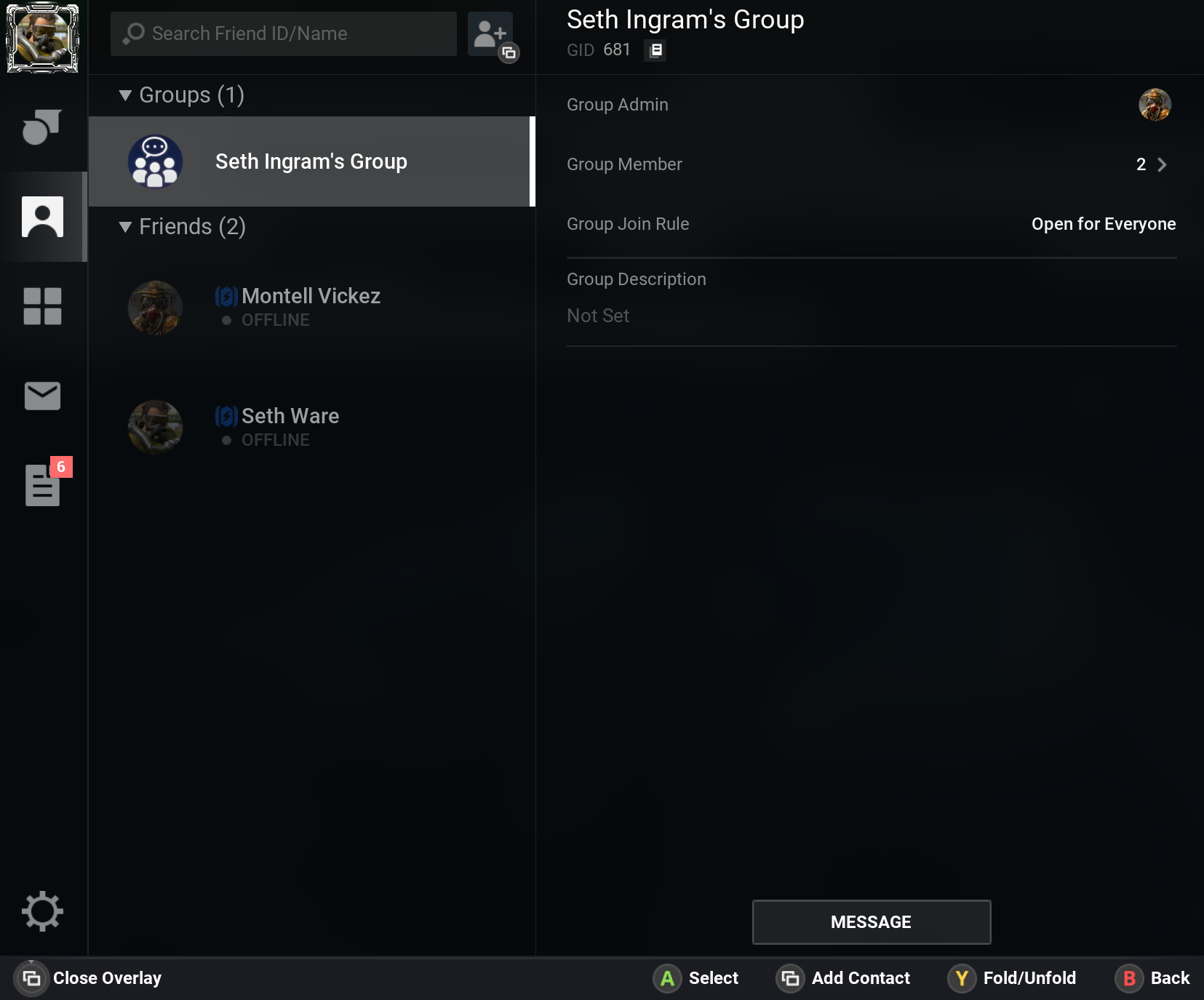
The default gamepad processor will automatically detect the current input device, and display a command bar at the bottom of the Overlay to indicate what commands are available on current view. The player can navigate between controls on Overlay with D Pad or Left stick of the Gamepad device.
2. Advanced Customization
To customize the key mappings for commands and the images displayed on the command bar, inherit from UPgosDefaultGamepadProcessor then override GetUserCommandMappings and OnImportResources.
UCLASS()
class UPGOSDemoOverrideGamepadProcessor : public UPgosDefaultGamepadProcessor
{
    GENERATED_BODY()

protected:
    /**
     * Define your own command mappings here.
     */
    virtual FPgosUserCommandMappings GetUserCommandMappings() override;

    /**
     * Override the resources used for gamepad buttons.
     */
    virtual void OnImportResources() override;
};
2.1. GetUserCommandMappings
❗ Note: All supported commands are defined in
EPgosUserCommandType. The player interacts with these command onOverlay.
GetUserCommandMappings defines all used commands in the project with the following steps:
- Declare a
FPgosUserCommandMappings - Fill it out with all used commands in the project with given keys
- Return the
FPgosUserCommandMappingsvalue
FPgosUserCommandMappings UPGOSDemoOverrideGamepadProcessor::GetUserCommandMappings()
{
    FPgosUserCommandMappings Default = {};

    Default.Mappings.Add(MakeDefaultKeyInfo(EPgosUserCommandType::Confirm, EKeys::Gamepad_FaceButton_Bottom));
    Default.Mappings.Add(MakeDefaultKeyInfo(EPgosUserCommandType::Back, EKeys::Gamepad_FaceButton_Right));
    Default.Mappings.Add(MakeDefaultKeyInfo(EPgosUserCommandType::SpecialConfirm, EKeys::Gamepad_FaceButton_Top));
    Default.Mappings.Add(MakeDefaultKeyInfo(EPgosUserCommandType::SpecialBack, EKeys::Gamepad_FaceButton_Left));
    Default.Mappings.Add(MakeDefaultKeyInfo(EPgosUserCommandType::Menu, EKeys::Gamepad_Special_Left));
    Default.Mappings.Add(MakeDefaultKeyInfo(EPgosUserCommandType::CloseOverlay, EKeys::Gamepad_Special_Right, true));

    // define commands here...

    return Default;
}
MakeDefaultKeyInfo is defined in UPgosDefaultGamepadProcessor statically for conveniences.
// CommandType: regarding command type.
// Key: the key bound to this command.
// IsLongPress: the command will be executed only if the key is long pressed.
FPgosUserCommandMapping MakeDefaultKeyInfo(EPgosUserCommandType CommandType, const FKey& Key, bool IsLongPress);
2.2. OnImportResources
OnImportResources initializes the images used by keys. Replace images in GamepadSettings.Images to customize them.
void UPGOSDemoOverrideGamepadProcessor::OnImportResources()
{
    //NOTE it's optional to call Super, you could completely initialize resources with your images
    Super::OnImportResources();

    // Define an image which will be displayed on Overlay to represent a (gamepad) key.
    // It's better to use sprite (in atlas) for better rendering performance.
    // Example: FSoftObjectPath("/PgosOverlay/Sprites/controller/generic_press_right_Sprite.generic_press_right_Sprite")
    GamepadSettings.Images.FindOrAdd(EKeys::Gamepad_Special_Right) = FSoftObjectPath("...");
}
3. Not implemented features
Currently, Gamepad interactions are not supported on all Widgets created using CreateOverlayWidget().